
User roles and permissions
Published on:
Lexkeep uses role-based access controls to help you manage access to files within each cohort. When you invite someone to a cohort, you assign a role that determines what they can do there.
Users can have different roles in different cohorts. This allows you to tailor access for each matter, project, team, or external party.
Availability and seat quotas
Adding members to a cohort is a premium feature available on Lexkeep Pro and higher subscription plans.
You can add an unlimited number of Viewer members to a cohort. Viewer roles do not count against your subscription’s seat quota.
Editor and Admin are privileged roles. The number of Editors and Admins you can add is subject to the seat quota included with your subscription. Before assigning either role, ensure that your plan has an available privileged seat.
If you have reached your seat quota, you may need to remove or change an existing Editor or Admin role, or upgrade your subscription, before you can assign another privileged role.
Available roles
Viewer
A Viewer can:
- View files in the cohort
- Download files from the cohort
Viewers cannot upload or delete files, and they cannot manage other cohort members.
Use the Viewer role when someone needs access to review or retrieve records but should not change the cohort’s contents. For example, you may assign this role to a court official, external adviser, auditor, client representative, or other third party with a limited need to access documents.
You can add an unlimited number of Viewer roles.
Editor
An Editor can:
- View files in the cohort
- Download files from the cohort
- Upload files to the cohort
Editors cannot delete files or manage cohort membership and roles.
Use the Editor role for internal team members, collaborators, colleagues, or contributors who need to add documents to a cohort as part of their work.
Editor roles are subject to your subscription’s privileged-seat quota.
Admin
An Admin has full access within the cohort. Admins can:
- View files
- Download files
- Upload files
- Delete files
- Manage cohort members and role assignments
Only grant Admin access to trusted users who need to manage the cohort. Because Admins can delete files and change access settings, this role should be limited to the smallest appropriate group of users.
Admin roles are subject to your subscription’s privileged-seat quota.
Invite a member to a cohort
When inviting a new member, select the role that matches the access they need before sending the invitation.
Consider whether the person needs only to review files, contribute files, or administer the cohort:
| Role | View and download | Upload | Delete files | Manage members | Counts towards seat quota |
|---|---|---|---|---|---|
| Viewer | Yes | No | No | No | No |
| Editor | Yes | Yes | No | No | Yes |
| Admin | Yes | Yes | Yes | Yes | Yes |
Apply the principle of least privilege: give users the lowest level of access needed to complete their work. You can increase access later if responsibilities change.
Change a member’s role
You can update a member’s access role at any time.
- In the left sidebar, select Matters.
- Locate and open the relevant cohort card.
- Select Members.
- Find the member whose access you want to change.
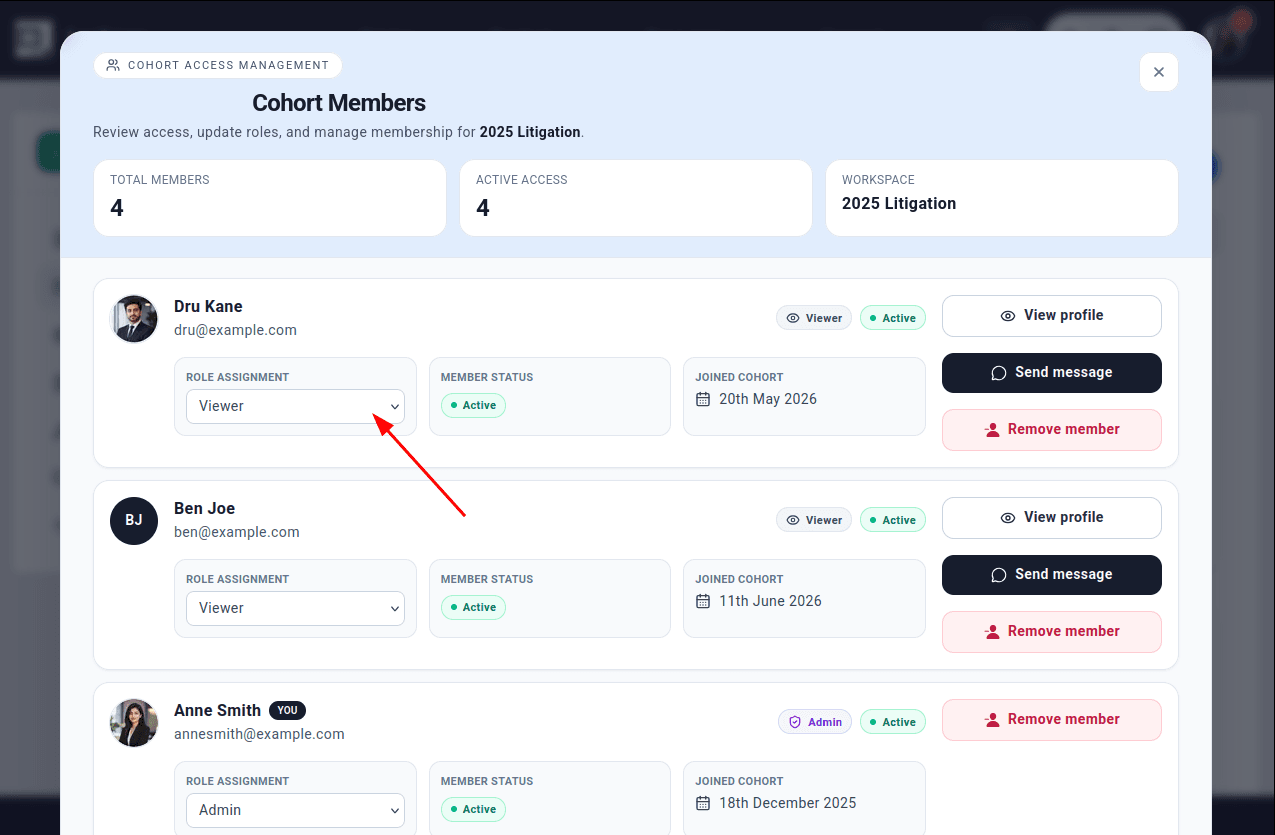
- Use the Role Assignment dropdown to select Viewer, Editor, or Admin.
If you change a Viewer to an Editor or Admin, the new role will count toward your privileged-seat quota. If no privileged seat is available, reduce the number of existing Editor or Admin roles, or upgrade your subscription, before making the change.
Remove a member
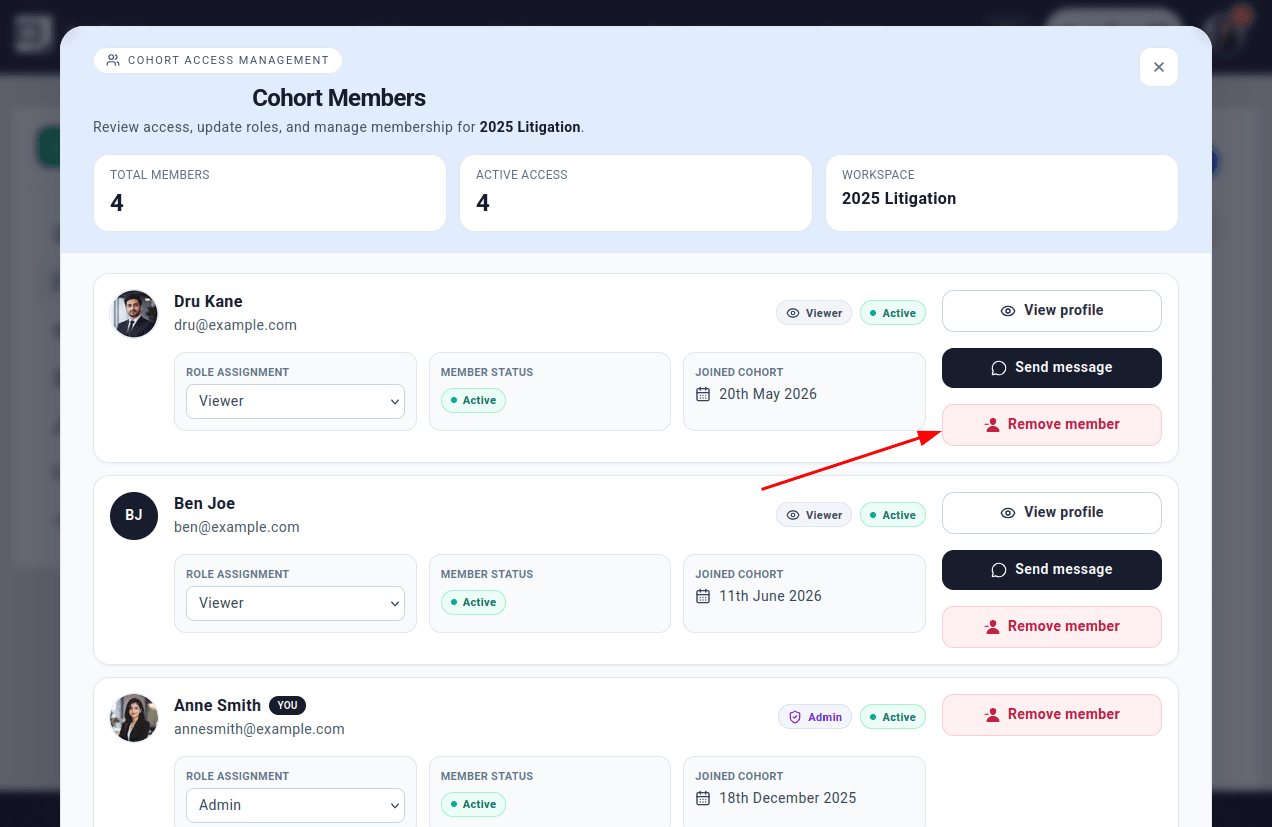
To revoke a person’s access to a cohort:
- Open Matters from the left sidebar.
- Select the relevant cohort card and choose Members.
- Find the relevant member.
- Select Remove member.
- Confirm the removal if prompted.
Removing a member revokes their access to that cohort and the files it contains. It does not remove files they may already have downloaded while they had access.
Good practice
- Use Viewer access for third parties who only need to inspect or download records.
- Use Editor access for contributors who need to upload files.
- Limit Admin access and review it regularly.
- Monitor available privileged seats before assigning Editor or Admin roles.
- Remove users promptly when they no longer need access.
- Use separate cohorts where different matters, teams, or confidentiality requirements require separate access controls.