
Track an e-signature request
Published on: (Updated on: )
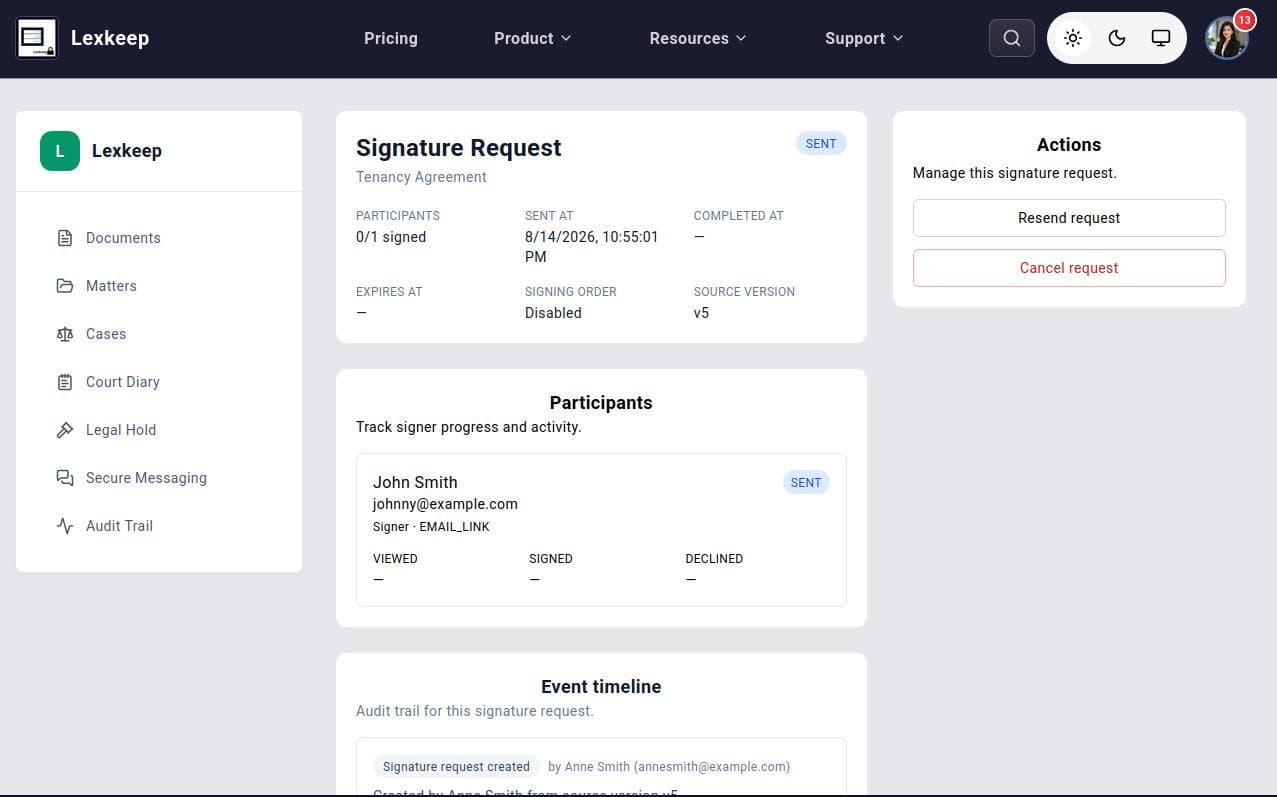
After sending a document for e-signature, you can track its progress from the related document in Lexkeep. The request details show its current status, participant activity, source file version, signing order, and a time-stamped event timeline.
Use this page to confirm whether a signer has received, viewed, signed, or declined the request. You can also use the available actions to send the request again, resend it to a participant, or cancel it when appropriate.
Before you begin
You can track an e-signature request only after it has been sent.
Make sure you have access to the document in the relevant cohort. The document card must display an active signature request.
Open an active signature request
- In the left sidebar, select Documents.
- Locate the document that you sent for e-signature.
- On the document’s file card, select Open active request.
The Signature Request page opens.
Review the request summary
At the top of the page, review the request details, including:
- Request status: For example, Sent or completed.
- Participants: The number of participants who have signed out of the total number required.
- Sent at: The date and time the request was sent.
- Completed at: The date and time the request was completed, where applicable.
- Expires at: The request expiry date and time, if one was set.
- Signing order: Whether signers must sign in a specified order.
- Source version: The version of the original document used to create the signature request.
The source version is important because a signature request applies to the specific document version that was sent. If a newer version of the document is uploaded, it does not replace the version already in the active request.
Check participant progress
The Participants section shows each signer’s name, email address, role, delivery method, and current status.
For each participant, you can review whether the request has been:
- Sent
- Viewed
- Signed
- Declined
Use this information to identify outstanding signatures and determine whether a reminder or other follow-up is needed.
Review the event timeline
The Event timeline provides an audit trail for the signature request. It records significant events, such as:
- Creation of the signature request
- The user who created it
- The source document version
- Delivery or resend activity
- Participant viewing activity
- Signature completion
- A decline or cancellation, where applicable
Review the timeline when you need to understand the request’s history or retain a record of signing activity for an internal review, audit, transaction file, or matter record.
Manage the request
The Actions panel may allow you to:
- Send again: Send the request again using the available delivery option.
- Resend request: Send a reminder or replacement request to the participant.
- Cancel request: Stop the active request if the document should no longer be signed.
Cancel a request if the wrong document, signer, email address, or signing arrangement was used. If you need to make changes to the document itself, upload or select the correct version and create a new signature request.