
Upload files
Published on: (Updated on: )
Upload files to Lexkeep to store, organize, and protect important records. You can add a file name and description, enable end-to-end encryption, and choose whether to anchor the file’s integrity hash on blockchain.
Before you begin
For better matter organization, create or open the relevant cohort before uploading a file. Uploading within a cohort keeps related records together.
Upload a file
Sign in to your Lexkeep account.
You will normally be redirected to the Documents page.
If you are on another page, click the user menu in the top-right corner, then select Documents from the drop-down menu.
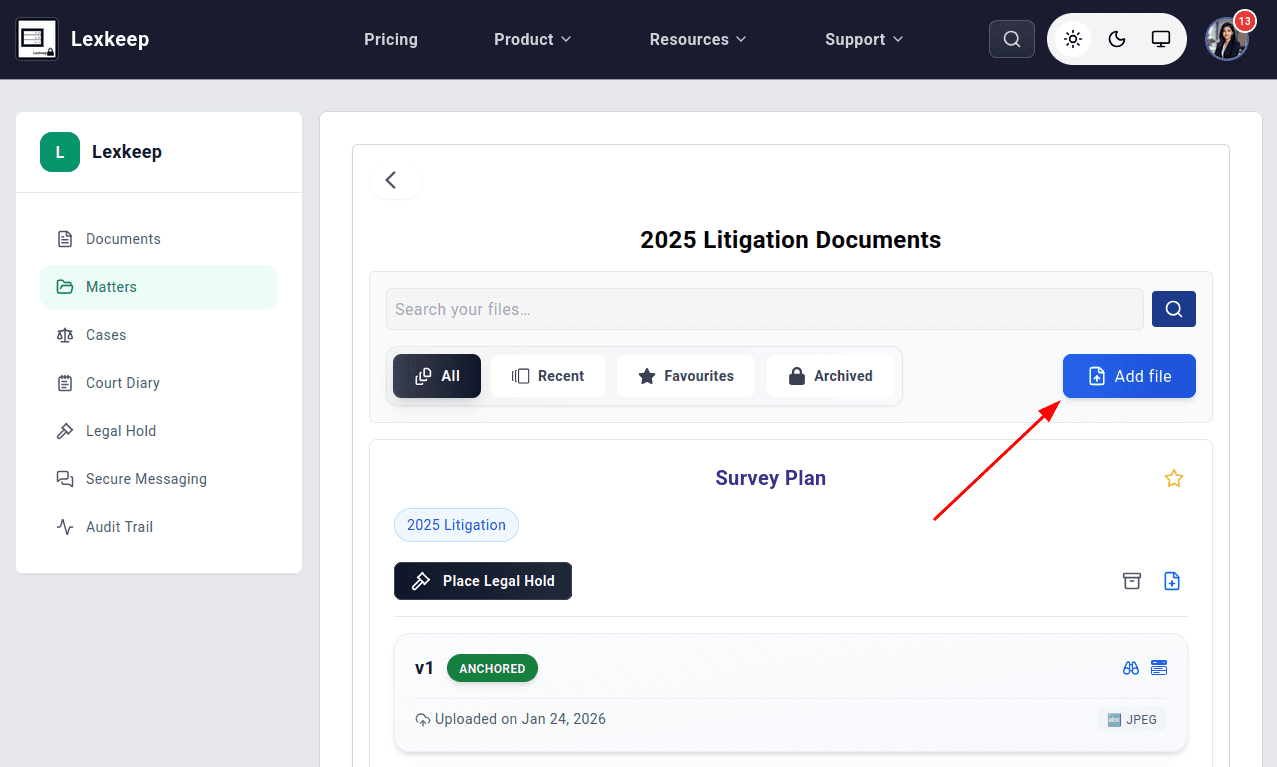
- Click Add file.
- Drag and drop a file into the upload area, or click the upload area to browse and select a file from your device.
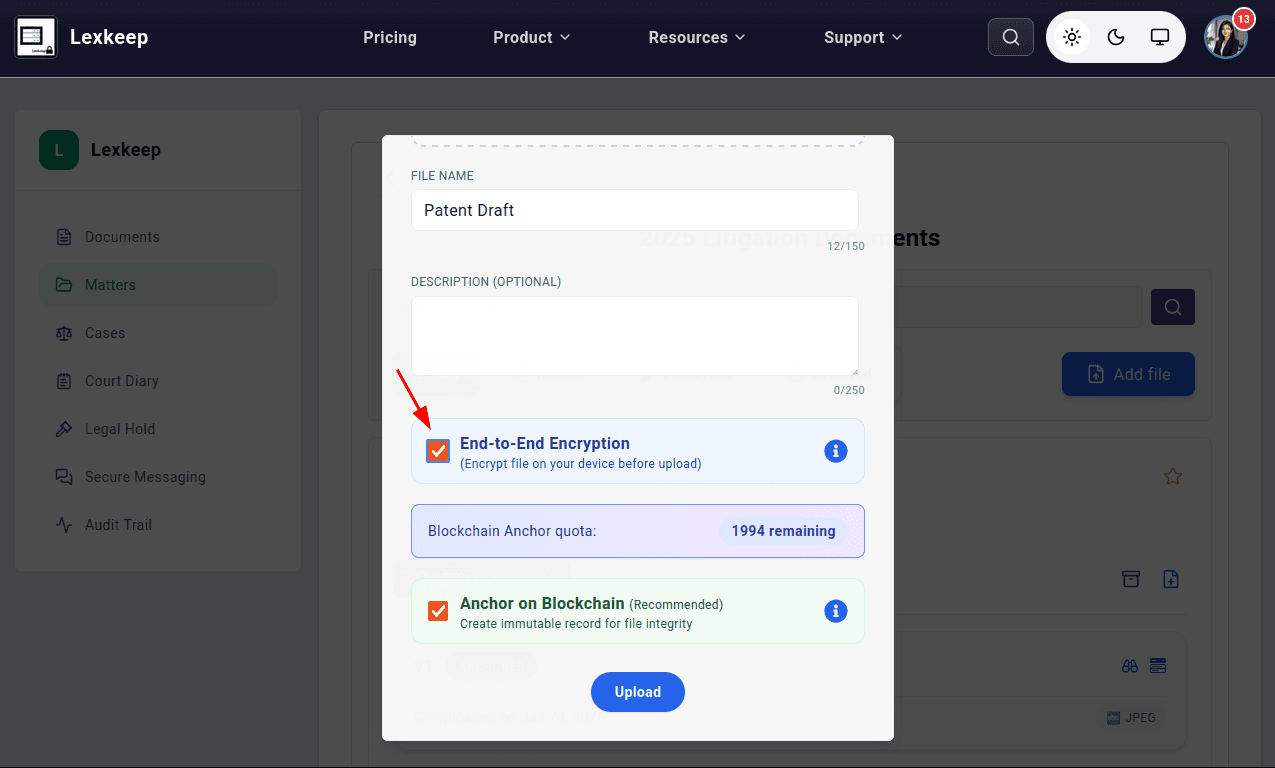
Enter a file name.
This is optional. If you do not enter a name, Lexkeep uses an automatically generated name based on the selected file.
- Add an optional description to provide context about the file.
- Choose your security and integrity options:
- End-to-End Encryption: All Files uploaded to Lexkeep are encrypted in transit and at rest. For high-trust document you can additionally select this option to encrypt the file on your device before it is uploaded.
- Anchor on Blockchain: This option is selected by default. It anchors the file’s cryptographic integrity hash on blockchain. Clear the option if you do not want the file hash anchored.
- Click Upload.
After the upload is complete, the file appears on your cohort’s Documents page.
Optional end-to-end encryption
When you select End-to-End Encryption, Lexkeep uses your Lexkeep password for client-side encryption.
Important: Lexkeep cannot decrypt an end-to-end encrypted file if you forget the password used to encrypt it.
If you change your Lexkeep password, you can continue to access files encrypted with your previous password if you provide that previous password during the password-change process.
If you reset your password instead, you may no longer be able to decrypt files that were encrypted using your previous password.
Check blockchain anchoring status
If Anchor on Blockchain was selected, the file card on the Documents page displays its anchoring status.
You may see:
- Anchored — The file’s integrity hash has been anchored on blockchain.
- Queued — The anchoring request is waiting to be processed.
- Pending — Anchoring is still being processed.
Click the status shown on the file card to view more information.