

File versioning
Published on: (Updated on: )
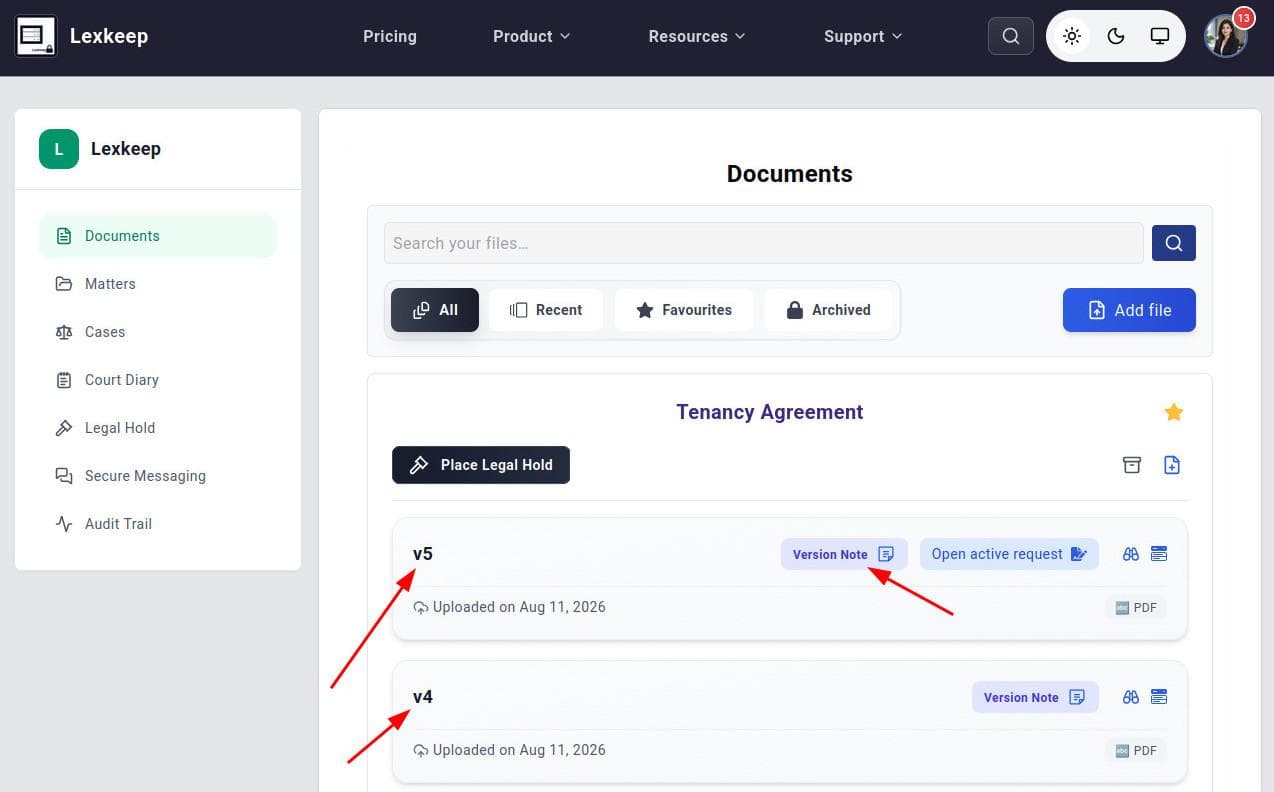
File versions keep updated copies of a record connected to its original file history. Use a new version when a document is revised, corrected, approved, or otherwise updated.
Create a new file version
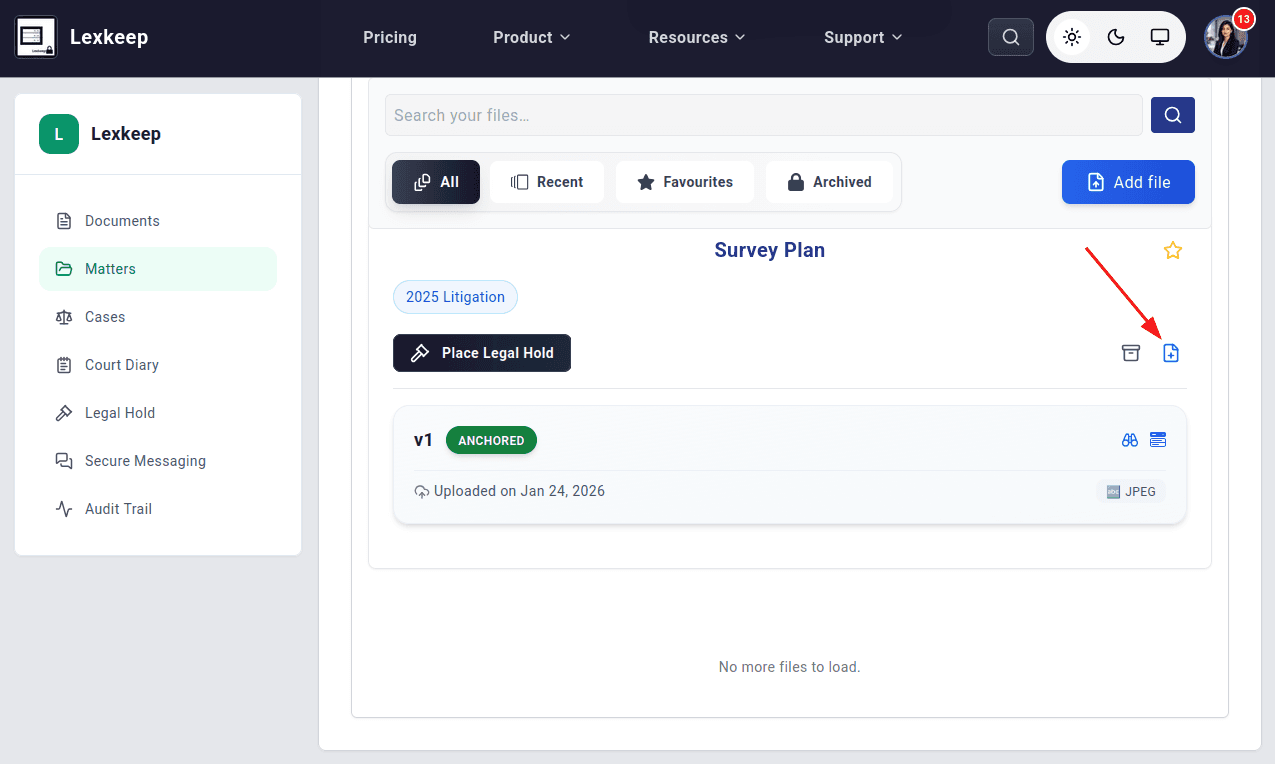
- Go to the Documents page.
- Find the file card for the file you want to update.
- Click the file icon with a plus sign in the middle.
- In the file upload modal, drag and drop the updated file or click the upload area to browse for it on your device.
Add an optional Amendment Note.
Use this note to explain the update, such as “Revised after client comments”, “Corrected signature page”, or “Executed version.” The parent file already has a description, so an amendment note applies specifically to the new version.
- Review the available security and integrity options:
- End-to-End Encryption: If the parent file uses end-to-end encryption, this option may be selected by default. Confirm that the setting is appropriate before uploading.
- Anchor on Blockchain: Keep this option selected to anchor the new version’s cryptographic integrity hash on blockchain, or clear it if anchoring is not required.
- Click Upload.
Lexkeep uploads the selected file as a new version of the parent file, rather than as a separate and unrelated record.
Best practices
- Create a new version when you need to add an updated, corrected, approved, or otherwise revised copy of an existing record. Earlier versions remain preserved in the file’s version history.
- Use an amendment note that clearly identifies the nature of the change.
- Confirm that you selected the correct parent file before uploading.
- Check the encryption setting, particularly when working with end-to-end encrypted parent files.
- For important or final versions, consider blockchain anchoring to support independent integrity verification.
See Upload files for more information about encryption, blockchain anchoring, and upload settings.